- "Why are some of my faces invisible?"
- "Why does my model look 'inside-out'?"
These are common questions asked by many people starting to model and develop with Unity and Blender. The concepts discussed here also apply more broadly to any 3D rendering systems.
Typically this is a problem with your normals.
Background:
A normal is the vector perpendicular to a face that points "forward" relative to that face.

Normals are also central to calculating reflected light.
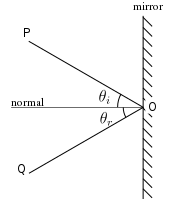
Many 3D rendering systems operate with single-sided faces. Consequently, if you have your normals pointing the wrong way, your face won't be visible when you expect it to be. Here's how to get a better handle on normals with Blender.
Assumptions:
- All of the following techniques occur in Edit mode in Blender.
- Shortcut keys may change in later versions. This is accurate as of version 2.73.
If you suspect you have a problem with normals in Blender, the first thing you should do is enable the display of face normal vectors by depressing the face icon as shown in the picture below. Depending on the scale of your project, you may want to change the "Size" parameter to increase the visibility - I turned it up to 1 from its default value of 0.1 for this demonstration. This panel is found on the right side of the 3D View by pressing N when the mouse is over the view port.

- You may need to expand the collapsed Mesh Display panel.
- Also take note of the other informative layers you can toggle - these will be helpful at times when troubleshooting other problems.
In the following picture, you can see the normal vectors shown in cyan. I intentionally made one of the faces pointing inward -- its normal vector points toward the center instead of outward.

If you are viewing it in Solid mode, you will notice the face is slightly darker and the normal vector is obscured.

To discretely flip the normals of the selected faces we can select "Flip Normal" from the Face menu (CTRL+F).

In situations where you have a lot of normal problems, it can be helpful to use the automatic "Recalculate Normals" action from the Face menu (CTRL+F)

The shortcut for this is CTRL+N. This usually works if your topology isn't a complete rat's nest. This will default to "Outside" normals.
This isn't always the silver bullet though. If you're building (as an example) the inside of a dungeon for a video game, you might need to switch to "Inside" mode. This can be done by using the CTRL+SHIFT+N shortcut, or by expanding the Tools menu (T when your mouse is over the view port) and checking "Inside" from the operator parameters panel.

Now that our face normal has been fixed, this is what it should look like.

And in Solid mode:

Bonus:
I also like to sometimes configure my shaders to highlight backfaces in case I miss them otherwise. Here's a basic node graph to demonstrate this:

The "Backfacing" output returns either 0 (false) if it's the front of a face or 1 (true) if it's the back of a face. We link this up to the Mix Shader's Factor input and it behaves like an "if statement" in programming terms.
You could also do this with a Color Mixer and a single Diffuse Shader - I just prefer mixing two separate shaders because then I have the freedom to still build the primary shader to be however complex I need it to be and my backfaces can still be a simple diffuse red.
Here's what it looks like rendered.

And after fixing the normal...

References:

No comments:
Post a Comment